How do I stage several photos of one room consistently?
With Furnish consistently, every photo of a room shows the same furniture in the same place. The sofa in the wide shot is also in the photo taken from the other corner, in the same style and against the same wall. Buyers look through the whole gallery. If the furniture changes from photo to photo, they notice at once and the staging looks fake.
The example shows three photos of the same living room, furnished together with Furnish consistently. We created the empty sample room with AI, so that we show no customer photos. The furniture comes from Immopix without any changes.
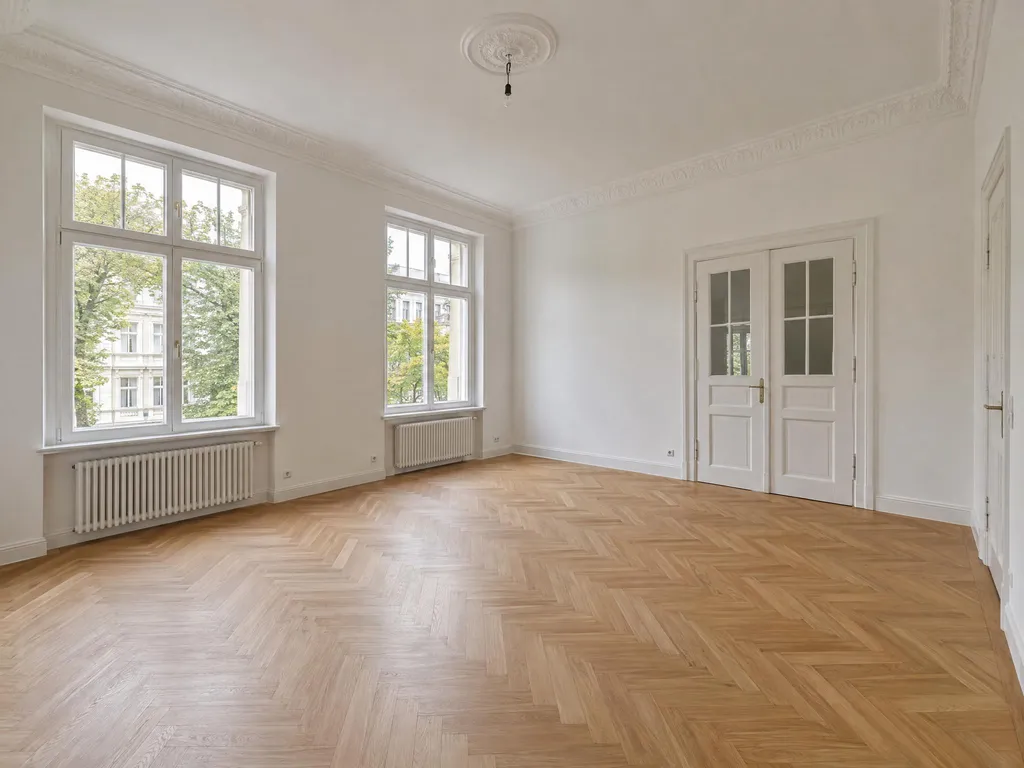
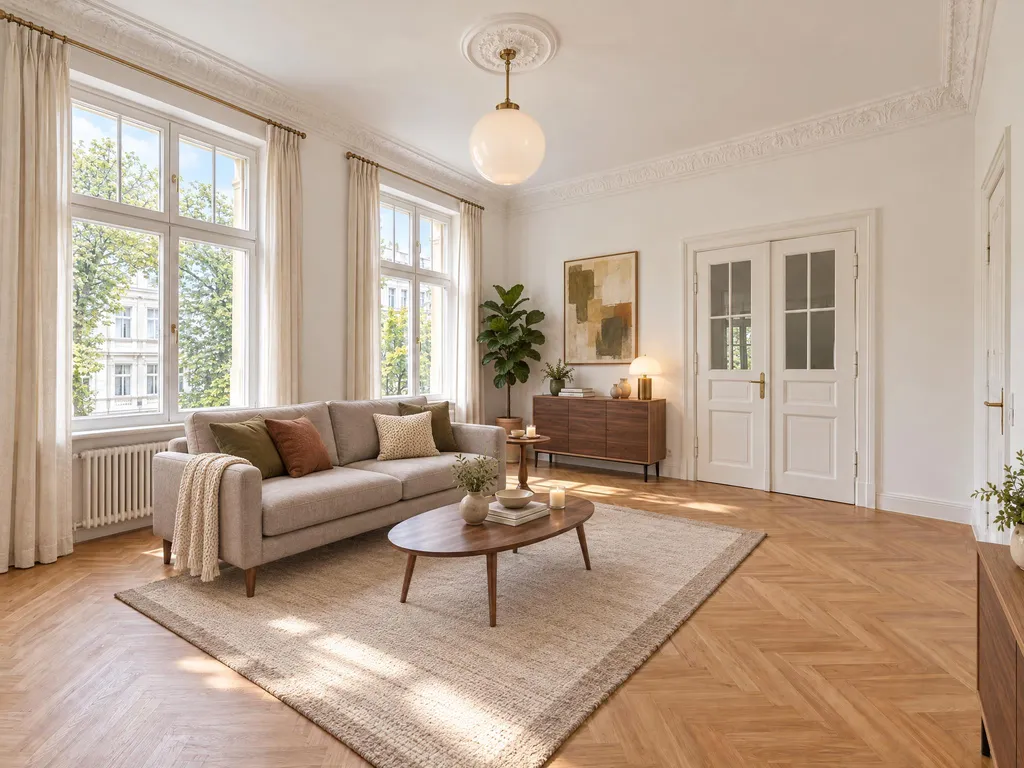
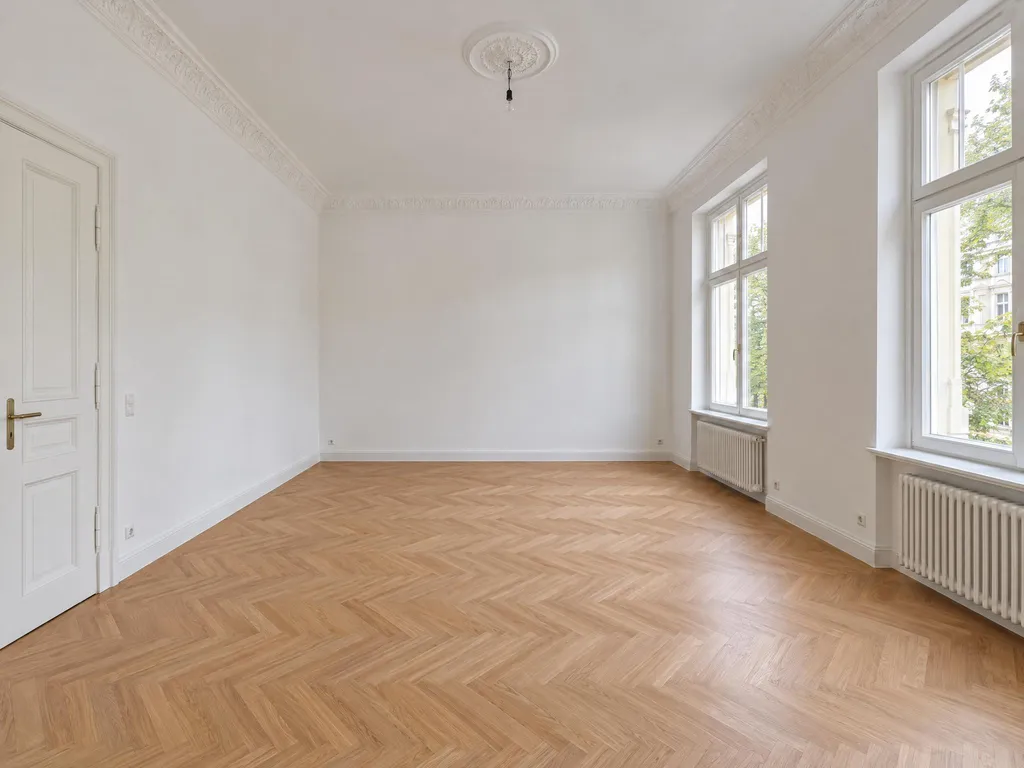
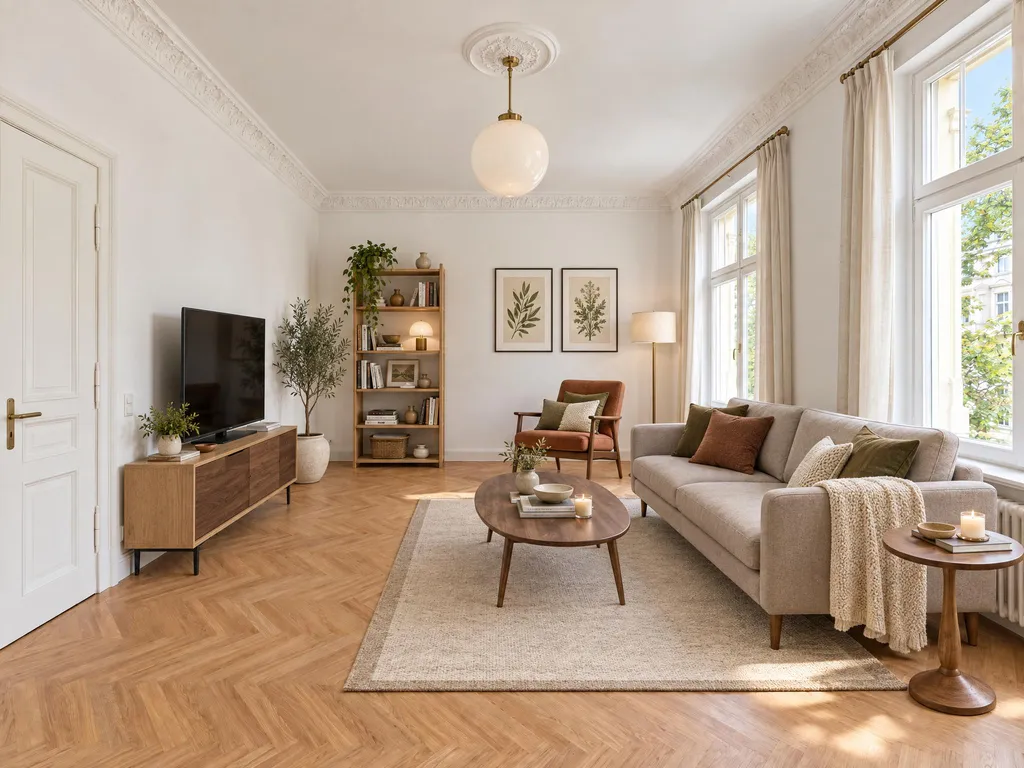
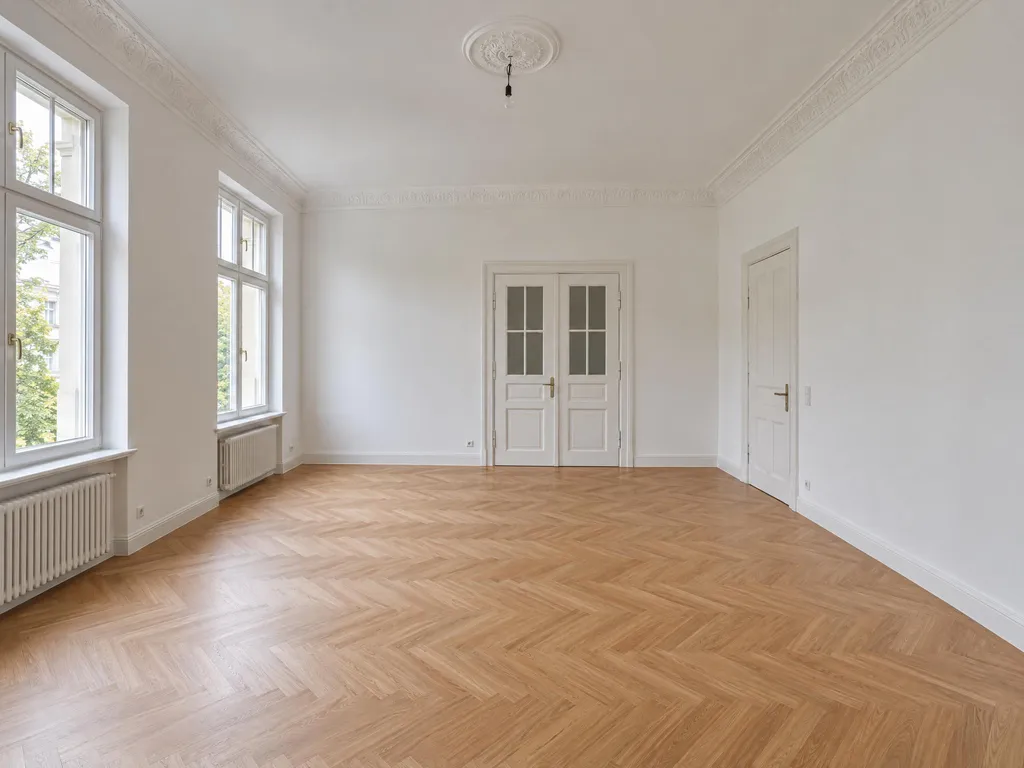
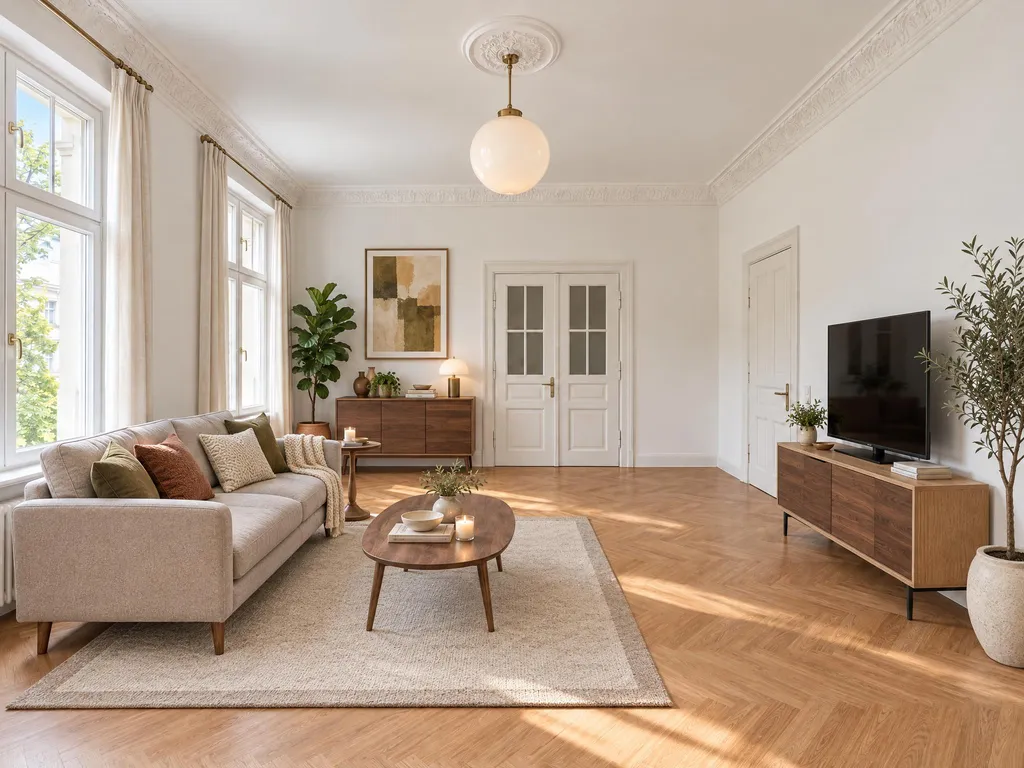
How it works
When you upload photos, Immopix detects which photos of a property show the same room. Two bedrooms stay separate. An open-plan living and dining area with a kitchen counts as one room.
For staging, Immopix plans the furniture once for the whole room. The AI looks at all photos of the room together. It then stages one photo first and furnishes the other photos to match it.
Stage several photos at once
- Open the property and select the photos.
- Click Edit and choose the Virtual staging template.
- The Furnish consistently card is already switched on. Below it, you see each room for which you selected 2 to 6 photos, with small thumbnails.
- If a photo does not belong to that room, click its thumbnail. Immopix then stages that photo on its own.
If you switch the card off, Immopix stages each photo on its own, as before.
Stage a single photo to match
In the image editor, you see the option Match this photo as soon as another photo of the same room is staged. It is ticked already. The small thumbnail shows which photo the furniture follows. With Choose another photo, you can use a different staged photo of the property as the reference.
After you stage the first photo of a room, the editor offers to stage the other photos of that room to match it. The photo you already staged stays as it is.
What does it cost and how long does it take?
Each photo costs 1 credit, as usual. There is no surcharge, and the free revisions apply as for any other edit.
Planning the whole room takes a little longer. A room is usually ready in about 3 minutes. You do not need to keep the window open. The photos appear in the property when they are done.
Good to know
- Style and wishes apply to the whole room. All photos of a room get the same furniture style. If you pick a different style in the editor than the reference photo has, Immopix unticks "Match this photo", because a different style cannot match.
- Furnished rooms: with Replace furniture, the AI first removes the existing furniture and then furnishes all photos of the room in the same new way.
- Up to 6 photos per room. If you select more photos of one room, Immopix stages them one by one. In that case, select 6 photos or fewer.
- Always in 2K. Consistently staged photos are 2048 pixels on the long side. The 4K option does not apply to them.
- Declutter and Decor & details do not apply to consistently staged photos, because the decor is part of the shared plan. Optimize lighting works as usual if you select it.
How closely do the photos match?
Large furniture such as the sofa, bed, table, cabinets and rug usually stands in the same place in every photo. Small decor such as cushions, vases or books can differ slightly between photos. In large open-plan living and dining areas, a table sometimes sits at a slightly different angle. If that happens, revise only that one photo. The revision uses the same plan as the rest of the room.
If you revise the photo that the others follow, the other photos may no longer match it. Immopix tells you this in the revision dialog.
As with all staging, the AI never changes walls, windows, doors, floors or fixed fittings.
Labelling in your listing
Consistently staged photos also need a note in the listing: "Virtually staged. The furniture shown is not part of the property." For more on this, see Is AI photo editing legal in the EU?.