How do I change just one spot in a photo?
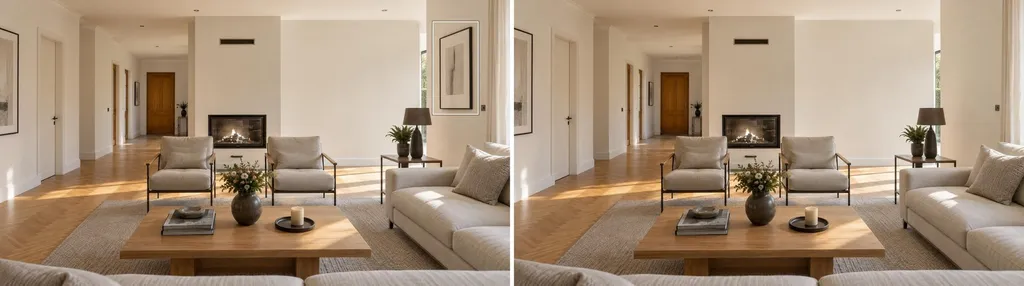
With Edit one spot you fix a single area of a photo, for example a distracting lamp, a bin or a picture on the wall. You mark the spot and add a short note on what should happen there. The rest of the photo usually stays as it is.
How it works
- Open the photo and choose the Edit one spot tab in the AI editing panel.
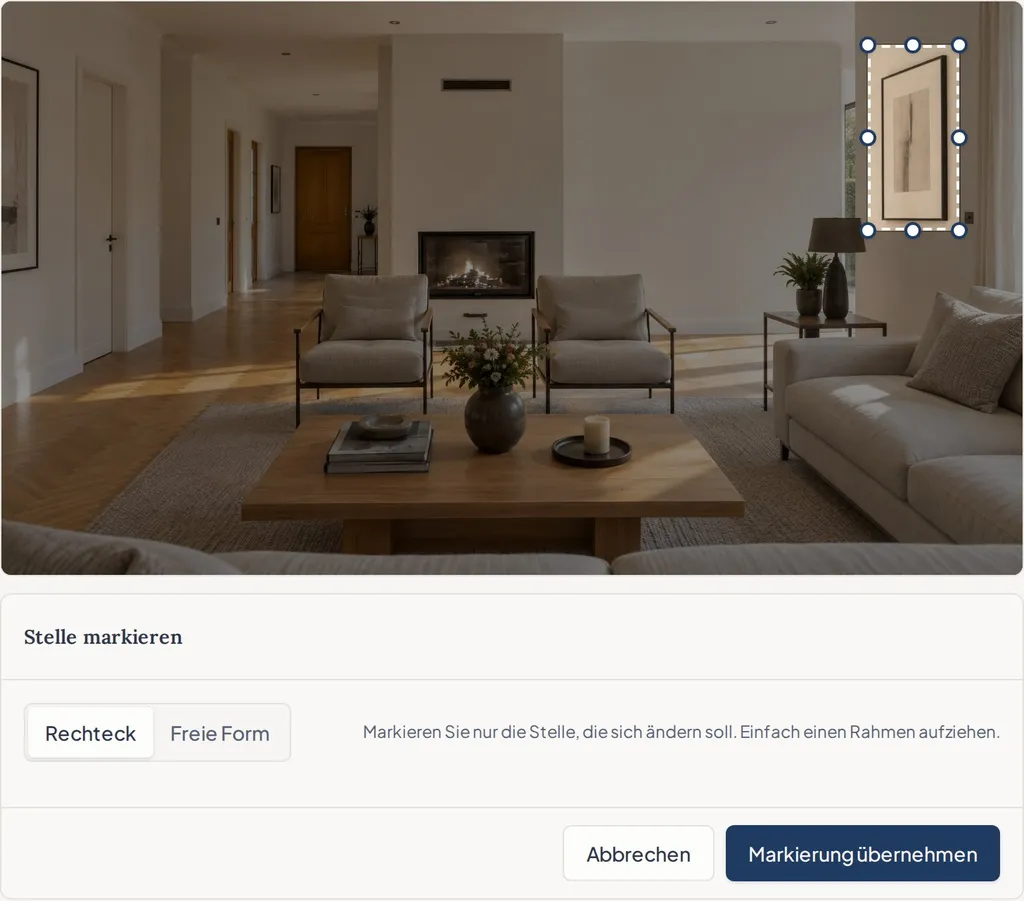
- Click Mark the spot on the photo. Drag a frame around the object with Rectangle, or trace it point by point with Free form.
- Click Use this marking.
- Under What should happen in this spot?, write a short sentence such as “Remove the lamp” or “Replace the picture with a modern art print”.
- Click Start editing.
What is “Edit one spot” good for?
It is made for small, targeted fixes. You remove an object, replace it with a different one, or change a small area, for example a strip of lawn into paving. It helps most when the spot is hard to describe in words, such as one of two identical lamps.
For changes to the whole photo, use the Presets or Custom edit. That includes virtual staging, a new sky and better lighting.
Tips for a good result
- Mark the whole object with a little margin. If a cable, a shadow or a base belongs to it, include them in the marking.
- Mark only what should change. A large frame over half the room makes the result harder to predict.
- Each edit changes one spot. For a second spot, start another edit afterwards.
- If very similar objects stand right next to the marking, they may change too. Take a quick look at the result.
What does it cost?
An edit with “Edit one spot” costs the same as any other AI edit. If nothing changed in the marked area, we charge nothing and show you a short note. You can then adjust the marking or the description and try again.
The edit runs in 2K. For a higher resolution, use 4K Upscale afterwards.
Fixing a finished version
“Edit one spot” works on the original and on every finished version. If a result is almost right and only one spot is off, click Not good? Try again below the image, then Only one spot is wrong? Mark it. Immopix opens the marking on that version.
How versions and further edits work together is explained in Can I revise the result?.