How do I export photos with a watermark?
When you download a photo, you decide whether to export it without a watermark, with your own text, or with your logo. The same options are available for individual photos and ZIP files containing several images.
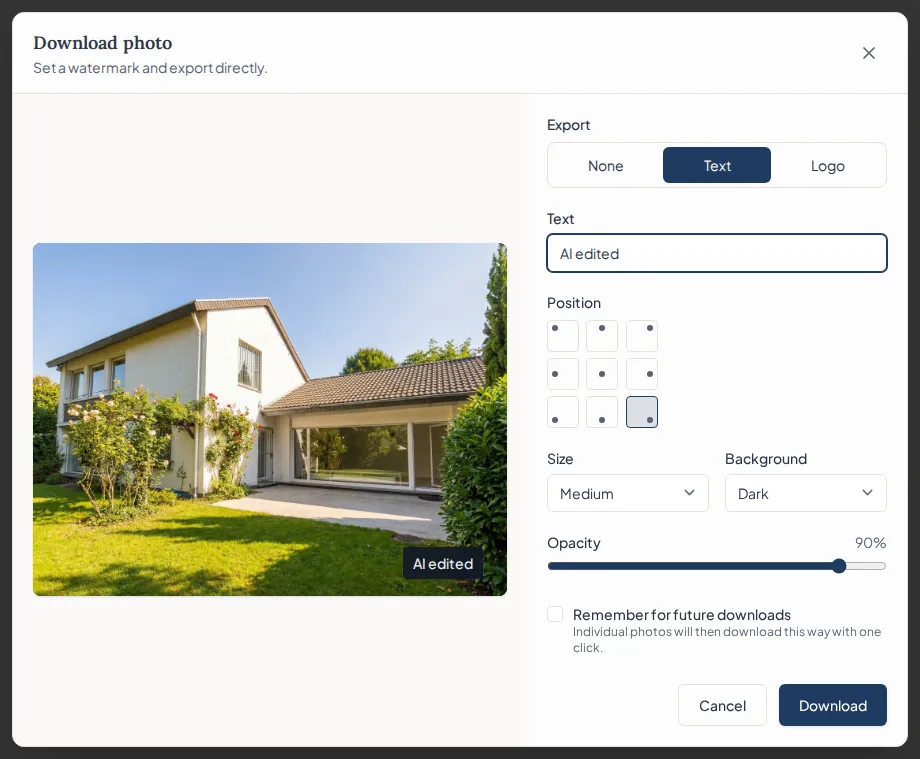
Export one photo
Open the photo and click Download. The export preview opens automatically the first time. Choose one of these options:
- None downloads the current image version without a watermark
- Text adds your own text of up to 60 characters, such as “AI edited”
- Logo uses the logo saved under Settings → Branding
For a text or logo watermark, you can also set the position, size, opacity, and background.
Under Adjust appearance, you can pick the font for your text. There are four styles: Bold is the default, Light and Extra light look much lighter, and Classic looks like the type in a printed book. If the text looks too heavy, choose a lighter style instead of lowering the opacity. The text then stays crisp and does not look faded.
The preview shows each change directly on the photo. Then click Download.
Export several photos as a ZIP
Open a property and click Export at the top. Without a selection, you export all photos. To export only some images, select them first and then click Export.
The export preview shows the selected photos. Your watermark settings are applied to every image. Click Create ZIP to start preparing the file in the background; you can close the window while it is being created.
With Social media at the top of the same window, you turn the photos into a post for Instagram and Facebook. The steps are in How do I create a social media post for a property?
Save settings for future downloads
Select Remember for future downloads if you want individual photos to download directly with the same settings next time. Use the small arrow beside Download whenever you need a different version.
Your saved download default appears under Settings → Branding, where you can also reset it. The export preview will open again on your next download.
Does the watermark change my photo?
No. The watermark is added only to the downloaded file. Your saved image version, original photo, and all revisions remain unchanged. You can export the same photo again later with a different watermark or without one.
Exporting uses no credits and does not count as an edit or revision.